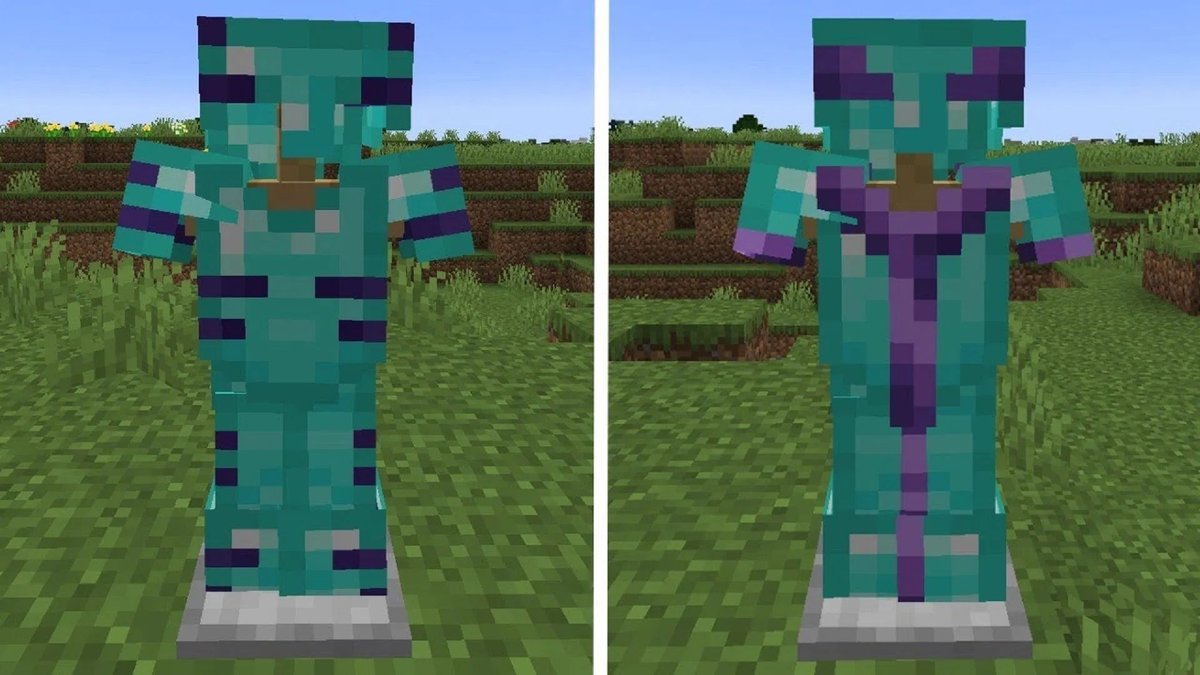
It's frustrating, isn't it? You've poured hours into crafting the perfect custom armor for your Minecraft mod or datapack, only to find that when you apply a dazzling new armor trim, it simply… doesn't show up. Or worse, it displays incorrectly, leaving your meticulously designed gear looking plain and unfinished. This isn't a bug; it's a design choice in Minecraft that, while offering immense flexibility, creates a significant hurdle for creators. Thankfully, you don't have to spend days hand-coding thousands of JSON files. This is where learning How to Use Armor Trim Generators becomes your superpower, transforming a monumental task into a few clicks.
These clever tools automate the complex process of generating the precise item model files Minecraft needs to display armor trims on any armor, vanilla or custom. Think of it as a digital architect, instantly blueprinting every possible armor-and-trim combination so your creations can finally shine with their intended glory.
At a Glance: Why This Generator Matters
- Solves a Major Headache: Eliminates the tedious, error-prone manual creation of hundreds (or thousands) of JSON model files.
- Enables Custom Trims: Makes your custom armor types fully compatible with Minecraft's trim system.
- Boosts Creativity: Frees you to focus on unique armor designs and trim materials, knowing display is handled.
- Saves Time: Generates complex file structures in moments, not days.
- Ensures Accuracy: Produces correctly formatted JSONs, reducing common display glitches.
The Glitch in the Matrix: Why Custom Armor Trims Don't "Just Work"
Before we dive into the solution, it's vital to understand the problem. Minecraft's armor trim system, introduced in version 1.20, is incredibly robust. It allows for 16 unique trim patterns and 10 different trim materials (like iron, gold, diamond, amethyst, etc.), leading to 160 distinct visual combinations on each of the 4 armor pieces. That's a lot of style!
However, this flexibility comes at a cost for developers. When you create a new armor material or even a custom texture for an existing one, Minecraft doesn't automatically know how to apply these trim overlays. It's not a simple texture swap. Instead, for every single piece of armor (helmet, chestplate, leggings, boots) and every single trim pattern, and every single trim material, Minecraft expects a unique JSON item model file. This file tells the game exactly which base armor texture to use and then, crucially, which trim overlay texture to layer on top.
Imagine doing that manually: 4 armor pieces x 16 trim patterns x 10 trim materials = 640 distinct JSON files per custom armor type. If you have multiple custom armor sets or unique trim materials, that number explodes into thousands. It's a recipe for developer burnout, riddled with opportunities for typos and broken models. This manual burden is why an armor trim generator isn't just a convenience; it's practically a necessity for modern Minecraft development.
Unlocking Trim Potential: What an Armor Trim Generator Does
An armor trim generator is a specialized online tool designed to automate the creation of these essential JSON model files. Its core function is to take your specific inputs—details about your custom armor, trim materials, and even integration with other mods—and spit out a perfectly organized ZIP file containing all the necessary model JSONs.
It acts as an intelligent compiler. Instead of you writing lines like:"parent": "minecraft:item/generated","textures": { "layer0": "yourmodid:item/custom_helmet", "layer1": "minecraft:trims/items/helmet_trim_coast_iron" }
...for hundreds of variations, the generator handles it all. It ensures correct file paths, proper parent declarations, and accurate layer0 (base armor texture) and layer1 (trim texture) assignments for every single permutation you need. This process bridges the gap between your custom creations and Minecraft's built-in trim rendering logic, allowing your players to finally Generate Minecraft armor trims and see them applied beautifully.
Your Step-by-Step Blueprint: How to Use Armor Trim Generators
Using an armor trim generator is remarkably straightforward once you understand the key inputs. While interfaces may vary slightly between different online tools, the underlying principles remain consistent.
Step 1: Accessing the Generator
Typically, armor trim generators are web-based tools. A quick search will reveal several options, often hosted by community developers or larger Minecraft utility sites. Once you find one, navigating to its page will present you with an interface designed to collect your project's specifics.
Step 2: Defining Your Mod ID
This is arguably the most critical input. Your "Mod ID" (or namespace) is the unique identifier for your datapack, mod, or resource pack. It's the yourmodid part in yourmodid:item/custom_item. The generator uses this ID to correctly structure the output folders and file paths, ensuring Minecraft can locate your assets.
- Example: If your custom mod ID is
ancient_tools, the generated models will be placed inassets/ancient_tools/models/item/.... - Tip: Double-check this! A typo here will lead to your items not rendering correctly.
Step 3: Choosing Your Armor Base Types
Here, you tell the generator which armor pieces it needs to create models for. You'll typically have two main categories:
- Vanilla Armor Types: If you're creating a resource pack or datapack that adds new trim materials but applies them to vanilla armor (e.g., adding a 'ruby' trim to a diamond chestplate), you'd select the standard
diamond_chestplate,netherite_helmet, etc. The generator will then create models for these vanilla items using your custom trim materials. - Custom Armor Types: This is where the generator truly shines for mod and datapack developers. You'll input the base texture path for each of your custom armor items.
- Example: For a custom 'Adamantite Helmet', you might input
item/adamantite_helmet. The generator will then know to referenceyourmodid:item/adamantite_helmetaslayer0in the generated JSONs. - Important: Ensure these paths are accurate relative to your
assets/yourmodid/textures/folder.
Step 4: Incorporating Custom Trim Materials
Minecraft comes with 10 default trim materials (diamond, gold, iron, emerald, etc.). If you want your custom armor or even vanilla armor to display trims made of new materials (e.g., "ruby," "titanium," "obsidian"), you'll define them here.
For each custom trim material, you'll provide:
- Material ID: A unique identifier (e.g.,
ruby,titanium). - Texture Path: The path to your custom trim texture within your resource pack. This texture needs to follow Minecraft's specific trim texture format (e.g.,
trims/color_palettes/ruby). - Crucial: These textures are typically grayscale, with different shades representing the areas that will be colored by the trim material. Minecraft then overlays them and applies the color from its internal trim palette (or your custom palette if defined elsewhere).
Step 5: Supporting External Armor Mods (Optional)
Some generators offer an option to integrate with armor types from other popular mods. If your project aims to be compatible with, say, a well-known fantasy armor mod, selecting this option might pre-populate some armor type fields or ensure the generated files are structured in a way that plays nicely with that mod's assets. This is less common but incredibly useful for large-scale modpack development.
Step 6: Generating and Downloading Your Files
Once all your inputs are in, click the "Generate" or "Download" button. The tool will process your selections and compile all the necessary JSON files into a single, organized ZIP archive. Download this archive; it contains the fruits of your labor!
Decoding the Output: What's Inside Your Generated ZIP?
The ZIP file you download is meticulously structured to drop right into your Minecraft project's assets folder. Understanding its contents will help you integrate it smoothly.
The assets Folder
This is the main directory within the ZIP. It will contain a folder named after your Mod ID (e.g., ancient_tools), which in turn holds your models and possibly atlases folders.
yourmodid/models/item/
This folder is the heart of the output. Here, you'll find hundreds of JSON files, each named precisely for an armor piece, trim pattern, and trim material combination.
- File Naming Convention: You'll see names like
diamond_chestplate_trim_coast_iron.jsonoradamantite_helmet_trim_sentry_ruby.json. - Inside Each JSON:
"parent": "minecraft:item/generated": Indicates these are standard 2D item models."textures": { "layer0": "yourmodid:item/your_armor_texture", "layer1": "minecraft:trims/items/your_trim_pattern_your_trim_material" }: This is the crucial part.layer0points to your base armor texture, andlayer1points to the specific trim overlay texture generated for that combination.
yourmodid/atlases/ (If enabled)
Some generators offer the option to generate atlases.json files. These are part of Minecraft's resource pack system, allowing multiple smaller textures to be combined into larger "atlases" for better performance. If you enable this, the generator will create atlas.json files that instruct Minecraft how to find and load your custom trim textures efficiently. This is particularly useful when building custom resource packs with many unique textures.
preview.json
This file is a helpful manifest, usually listing all the generated files and sometimes including a summary of your inputs. It's not loaded by Minecraft but serves as a handy reference for you.
Putting It All Together: Integrating Trims into Your Project
With your ZIP file in hand, the next step is to integrate these generated assets into your existing Minecraft mod, datapack, or resource pack project.
- Extract the ZIP: Unzip the downloaded archive. You'll typically find an
assetsfolder inside. - Locate Your Project's
assetsFolder:
- For Resource Packs: Your resource pack's root directory should have an
assetsfolder. - For Datapacks: Datapacks usually contain an
assetsfolder within theirdatafolder (e.g.,datapacks/your_datapack/data/yourmodid/assets). - For Mods: Your mod's
src/main/resourcesdirectory will typically contain theassetsfolder.
- Merge the
assetsFolders: Copy theyourmodidfolder (which containsmodelsandatlases) from the extracted ZIP directly into your project'sassetsfolder. If a folder with youryourmodidalready exists, merge the contents carefully, ensuring you don't overwrite any existing files unless intended. - Ensure Texture Paths are Correct: Double-check that all your custom armor textures and custom trim material textures are correctly placed within your
assets/yourmodid/textures/structure, matching the paths you provided to the generator. For example, if your custom armor texture isitem/adamantite_helmet.png, it should be atassets/yourmodid/textures/item/adamantite_helmet.png. - Reload Minecraft Assets: After placing the files, reload your game assets. In Minecraft, press
F3 + Tto reload resource packs and textures. For mod development, you'll typically need to rebuild and restart your development environment.
Avoiding the Minefield: Common Pitfalls and Troubleshooting
Even with an automated generator, things can occasionally go awry. Here’s a quick guide to some common issues and how to resolve them, ensuring your hard work isn't wasted. If you find yourself in a bind, remember that troubleshooting common resource pack issues often comes down to pathing.
- Incorrect Mod IDs: The most frequent culprit. If the Mod ID you entered into the generator doesn't exactly match the namespace used by your armor items, Minecraft won't find the models.
- Fix: Verify your Mod ID in your
modid:item/item_namedefinitions and regenerate if necessary. - Mismatched Texture Paths: The
layer0texture path in the generated JSON must precisely match where your armor's base texture.pngfile resides. - Fix: Ensure
assets/yourmodid/textures/item/my_armor.pngcorresponds toyourmodid:item/my_armorin the generator and JSON. Case sensitivity matters! - Missing Trim Material Textures: If you defined a custom trim material (e.g.,
ruby), but didn't place the correspondingtrims/color_palettes/ruby.pngtexture in yourassets/yourmodid/textures/trims/color_palettes/folder, the trim won't render. - Fix: Create or acquire the custom trim texture and place it correctly.
- Resource Pack Loading Order: If you're using a resource pack, ensure it's at the top of your loaded resource pack list in Minecraft's options, or that it merges correctly with other packs.
- Fix: Adjust resource pack order.
- Forgetting to Refresh: Sometimes, Minecraft needs a nudge. Press
F3 + T(reload resource packs) or even restart your game client after making changes to ensure everything is reloaded. - Overwriting Issues: If you're merging generated files into an existing project, be careful not to accidentally overwrite other important files with the same name.
- Fix: Use a file comparison tool or manually merge content if filenames clash.
Beyond the Basics: Advanced Customization and Best Practices
While armor trim generators do a lot of heavy lifting, understanding what they produce allows for further customization and adherence to modding best practices.
- Manual Tweaks to Generated JSONs: The generated files are standard JSON. If you need a very specific tweak—perhaps to alter a display property or add a custom model element to just one specific trim combination—you can manually edit the relevant JSON file. This is powerful but requires caution to avoid breaking the model. If you're looking to delve deeper into Minecraft's JSON model system for such tweaks, there are ample resources available.
- Performance Considerations: Generating thousands of individual JSON models can lead to a large number of files. While Minecraft handles this relatively well, excessive complexity, especially with high-resolution textures, can sometimes impact performance.
- Best Practice: Optimize your texture resolutions. Use smaller, efficient textures where possible.
- Namespace Management: Always ensure your Mod ID/namespace is consistent across all aspects of your project—your
fabric.mod.json(for Fabric) ormods.toml(for Forge), your textures, models, and definitions. Inconsistencies will lead to items not being found. - Version Control: Always use a version control system (like Git) for your project. If you generate new trim files or make manual edits, committing these changes regularly protects you from accidental data loss or difficult rollbacks.
Quick Answers to Your Burning Questions
You've got questions, we've got answers. Here are some common queries about armor trim generators:
Can I use an armor trim generator for existing vanilla armor?
Yes, absolutely! If you're creating a resource pack or datapack that introduces new trim materials and you want them to apply to vanilla armor items (like a diamond chestplate), the generator is perfect. You'd select the vanilla armor items as your "base types" and then define your custom trim materials. The output would be new models for those vanilla items, incorporating your custom trims.
Do I need a separate generator for each mod I develop?
Not a separate tool, but you will need to run the generation process for each unique Mod ID (namespace) you're working with. Each mod or datapack has its own namespace for assets, so the generator needs to be told which namespace to use for the output files to ensure they go into the correct folder structure.
What if my custom armor has unique 3D models instead of being 2D items?
The generator primarily handles the layer0 and layer1 texture overlays for standard 2D item models (parented to minecraft:item/generated). If your custom armor uses complex 3D models with custom JSON definitions (e.g., parented to a block model, or using display properties extensively), the generator might not directly apply the trims to your custom 3D model geometry. In such cases, you'd typically apply the trim texture as an additional layer within your existing 3D model JSON, potentially adapting the generator's output as a guide rather than a direct copy. It handles the 2D overlays, but your 3D model's specific setup would need to accommodate that layer.
Can I use the generated files across different Minecraft versions?
For Minecraft versions 1.20 and newer, the core functionality and file structure for armor trims remain consistent. So, files generated for 1.20 should generally work for later 1.20.x updates. However, always check for major game updates (e.g., 1.21, 1.22) as there might be subtle changes to the JSON schema or rendering engine that necessitate regeneration or minor manual adjustments.
Ready to Transform Your Custom Armor?
Gone are the days of laboriously crafting hundreds of JSON files just to make your custom armor visually compatible with Minecraft's trim system. Armor trim generators democratize this complex process, putting the power of automated asset creation directly into your hands. By understanding the core inputs—your Mod ID, armor base types, and custom trim materials—you can swiftly generate a fully structured set of model files.
This not only saves you countless hours but also empowers you to explore more ambitious custom armor designs and unique trim aesthetics, knowing that the display mechanics are handled. Whether you're making a simple datapack to enhance existing gear or embarking on advanced datapack development with entirely new armor sets, these generators are an indispensable tool in your creative arsenal. Dive in, experiment, and let your custom armor finally don the beautiful trims it deserves!