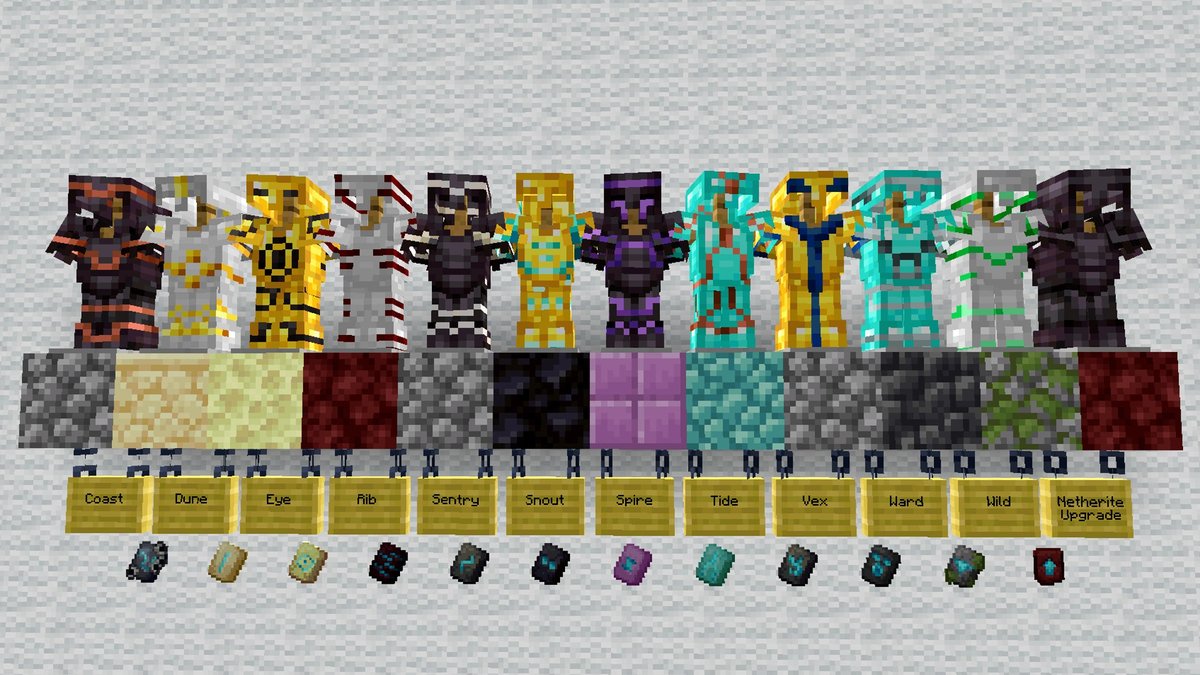
Gone are the days when your armor was merely a functional shell. With the introduction of Armor Trims in Minecraft's 1.20 Trails & Tales update, and further expanded in 1.21, you can now infuse your gear with unparalleled personality. This isn't just about looking good; it's about making a statement, showcasing your adventures, and truly owning your identity within the vast blocky world. Whether you're a vanilla explorer or a server owner leveraging powerful plugins like ExecutableItems, mastering the art of applying armor trims is your ticket to a customized aesthetic that perfectly reflects your journey.
At a Glance: Your Quick Guide to Armor Trims
- What they are: Cosmetic designs applied to armor using Smithing Templates, without affecting stats.
- Where to find them: 19 unique Smithing Templates scattered across various in-game structures, through archaeology, or as mob drops.
- Key components: A Smithing Template (the pattern), an armor piece, and a color-infusing material (like Diamond, Emerald, or Redstone).
- Duplication is key: Templates are consumed on use; rare ones should be duplicated using a crafting recipe.
- Netherite Upgrade change: Applying Netherite now also requires a specific Smithing Template.
- ExecutableItems support: Easily copy trim data from in-game items or configure it manually for custom items.
- Personalization potential: Hundreds of unique combinations across armor types, patterns, and materials.
The Dawn of Personalization: What Are Armor Trims?
Armor Trims have fundamentally changed how players engage with their gear. No longer are you restricted to the monochromatic palette of iron, gold, diamond, or netherite. These cosmetic additions overlay intricate patterns onto your armor pieces, allowing you to express yourself in ways previously unimaginable. Think of them as tattoos for your combat attire – purely aesthetic, entirely personal, and a testament to your adventures.
With 19 distinct patterns, each discoverable in specific biomes or structures, and a palette of nine different materials to color those patterns, the possibilities for customization are vast. From subtle accents to bold declarations, your armor can now tell a story even before you speak a word.
Unearthing Style: Finding Armor Trim Smithing Templates
The hunt for Smithing Templates is an adventure in itself, encouraging exploration across every dimension of Minecraft. Each of the 19 unique templates – including the new Flow and Bolt templates from the 1.21 update – has a specific origin, making their discovery a rewarding part of the game. Remember, while locations are consistent between Java and Bedrock Editions, drop chances can vary slightly.
Here's a breakdown of where you'll need to venture to collect them all:
Overworld & Dimension-Specific Templates
- Coast Trim: Found in Shipwrecks (Chests, 16.7% chance). Dive deep and uncover sunken treasures.
- Dune Trim: Lurks within Desert Temples (Chests, 14.3% chance). Just be mindful of the TNT traps!
- Eye Trim: Hidden in the depths of Strongholds (Chests, 10% in random chests, 100% in Library Chest). Crucial for those End-bound journeys.
- Sentry Trim: Guarded in Pillager Outposts (Chests, 25% chance). A risky but rewarding raid.
- Vex Trim: Tucked away in Woodland Mansions (Chests, 50% chance). Prepare for a long expedition and formidable foes.
- Wild Trim: Discovered in Jungle Temples (Chests, 33% chance). Navigate ancient puzzles to claim your prize.
- Spire Trim: Found exclusively in End Cities (Chests, 6.7% chance). After defeating the Ender Dragon, these sky-high structures hold the key.
- Tide Trim: Drops from Elder Guardians (20% chance in Java, ~50% in Bedrock). Conquer an Ocean Monument to earn this aquatic design.
Nether & End-Game Templates
- Netherite Upgrade Smithing Template: Essential not only for trimming but also for upgrading your diamond gear to netherite. Found in Bastion Remnants (Chests, 10% in random chests, 100% in the central Treasure Chest). This template is unique as it's also required for the Netherite upgrade process itself.
- Rib Trim: Hidden in Nether Fortresses (Chests, 6.7% chance). Brave the fiery wastes.
- Snout Trim: Also found in Bastion Remnants (Chests, 8.3% chance). Keep an eye out for this piglin-themed pattern.
Ancient & Trial-Specific Templates
- Silence Trim: An extremely rare find in Ancient Cities (Chests, 1.2% chance). These deep, dark biomes hold some of the most coveted treasures.
- Ward Trim: Another gem from Ancient Cities (Chests, 5% chance). Navigate the Warden's domain with caution.
- Flow Trim: Discovered in Trial Chambers Vaults (requires an ominous trial key, ~22.5% chance). A new challenge from the 1.21 update.
- Bolt Trim: Also found in Trial Chambers Vaults (requires an ominous trial key, ~5.4% chance). Even rarer than the Flow trim, indicating mastery of the Trial Chambers.
Archaeology Templates
- Wayfinder Trim: Unearthed through Archaeology in Trail Ruins (8.3% chance). Dig carefully at suspicious gravel or sand blocks.
- Shaper Trim: Also from Archaeology in Trail Ruins (8.3% chance). Patience and a brush are your best tools here.
- Host Trim: Yet another archaeological find in Trail Ruins (8.3% chance).
- Raiser Trim: The final archaeological trim from Trail Ruins (8.3% chance).
Collecting all these templates is a true testament to your exploration skills!
The Art of Duplication: Multiplying Your Masterpiece
Once you've found a rare Smithing Template, the last thing you want is to use it on a single armor piece only to realize you want to trim a full set, or even backup pieces. Templates are consumed when applied to armor. This is where duplication becomes your best friend.
To duplicate a Smithing Template:
- Open a Crafting Table.
- Place the Smithing Template you wish to duplicate in the top middle slot.
- Place a Netherrack block in the center slot.
- Fill the remaining seven slots with Diamonds.
This recipe will yield two copies of the original Smithing Template. It's a resource-intensive process, especially for the rarer templates, but absolutely worth it to ensure you have enough for all your armor pieces and future projects. Prioritize duplicating your most desired or hard-to-find templates first.
Crafting Your Look: Applying Trims to Vanilla Armor
With templates in hand (and duplicated!), you're ready to adorn your armor. The process is straightforward and occurs at a Smithing Table.
Steps to apply an Armor Trim:
- Locate a Smithing Table. You'll use this familiar workstation for all your trimming needs.
- Open the Smithing Table interface. You'll see three input slots.
- Place your Smithing Template (the pattern) in the leftmost slot.
- Place your chosen Armor Piece in the middle slot. All armor types (helmet, chestplate, leggings, boots) can be trimmed, except for the Elytra. Chestplates are often recommended for visibility, as they showcase the trim most prominently.
- Place your desired Material (the color source) in the rightmost slot.
The output slot will show your newly trimmed armor piece. Once you take it, the template and material will be consumed.
Choosing Your Color Palette: Trim Materials
The material you choose in the rightmost slot dictates the color of the applied trim. This is where the true artistic expression comes into play! Experiment with different materials to find the perfect shade for your chosen pattern and armor type.
Here are the materials and the approximate colors they impart:
- Redstone: Bright red
- Diamond: Light blue
- Emerald: Green
- Copper Ingot: Orange/Bronze
- Iron Ingot: Light gray/Silver
- Lapis Lazuli: Deep blue
- Quartz: White/Cream
- Netherite Ingot: Dark gray/Black
- Amethyst Shard: Purple
The final appearance can vary slightly depending on the base armor material (e.g., a diamond trim on iron armor will look different than a diamond trim on golden armor). This adds another layer of depth to your customization options, pushing the total combinations well into the hundreds. Feeling overwhelmed by the choices? You can use a dedicated tool to Create custom Minecraft armor trims and preview your designs before committing resources in-game.
Upgrading Your Shield: Netherite Armor & Trims
The Trails & Tales update also revamped the Netherite upgrade process. Previously, you simply combined diamond armor with a Netherite Ingot at a Smithing Table. Now, the process is more resource-intensive, requiring an additional component: the Netherite Upgrade Smithing Template.
To upgrade Diamond Armor to Netherite Armor (with or without a trim):
- Open a Smithing Table.
- Place a Netherite Upgrade Smithing Template in the leftmost slot.
- Place your Diamond Armor piece in the middle slot.
- Place a Netherite Ingot in the rightmost slot.
This will yield a Netherite version of your armor piece. If your Diamond Armor already had a trim, the trim will be preserved on the Netherite version, maintaining its pattern but potentially subtly changing its color appearance due to the new base material. If you wish to apply a trim after upgrading, you follow the standard trim application process described above. It's generally recommended to apply trims after upgrading to Netherite, as Netherite is the strongest armor in the game.
Beyond Vanilla: Implementing Trims with ExecutableItems
For server administrators and players utilizing the powerful ExecutableItems plugin, armor trims open up a new dimension of custom item creation. Imagine custom legendary armor pieces with unique trims that distinguish them from mundane gear. ExecutableItems fully supports armor trim data, allowing you to create custom items that display specific patterns and colors.
There are two primary methods for integrating armor trims into your ExecutableItems:
Method 1 (Recommended): Copy from an Existing Item
This is by far the easiest and most reliable method, especially for those who prefer a visual workflow. It ensures the trim data is perfectly replicated without manual configuration errors.
Steps:
- In-Game Trim Application: First, apply the desired armor trim to any standard armor piece using the Smithing Table, just as you would in vanilla Minecraft. This means you'll need the Smithing Template and the coloring material.
- Hold the Trimmed Item: Once the armor piece has the trim you want, hold that item in your main hand.
- Run the
/ei createcommand: Open your chat and execute the command:/ei create <item_id>. Replace<item_id>with the unique identifier you want for your new ExecutableItem.
The ExecutableItems plugin will automatically detect the armor trim data (pattern and material) on the held item and incorporate it into the newly created ExecutableItem's configuration. This method is fantastic for quickly creating visually distinct custom gear.
Method 2 (Advanced): Manual YAML Configuration
For experienced users who prefer direct control or are modifying existing ExecutableItems, you can manually add armor trim data to the item's YAML configuration file. This method requires precision, as typos can lead to issues.
While the exact YAML structure can vary slightly with ExecutableItems updates, the core principle involves adding a trim section with pattern and material keys.
Example (conceptual):
yaml
... (other item properties)
item_meta:
armor_trim:
pattern: "minecraft:rib" # Example pattern, always use the minecraft: prefix
material: "minecraft:diamond" # Example material, always use the minecraft: prefix
... (other item properties)
You would need to know the exact internal identifiers for each pattern (e.g., minecraft:rib, minecraft:sentry) and material (e.g., minecraft:diamond, minecraft:amethyst_shard). Using Method 1 is highly recommended to avoid these potential naming pitfalls.
Troubleshooting Trimmed ExecutableItems: Common Pitfalls & Solutions
Even with the simplicity of ExecutableItems, issues can arise. Here are some common problems and their fixes:
Problem: Wrong Trim Applied or No Trim Visible
- Check YAML for Typos (Manual Method): If you're using Method 2 (manual configuration), carefully review your
patternandmaterialnames in the YAML file. Even a small typo will prevent the trim from rendering correctly. Always use theminecraft:prefix for both. - Armor Material Variation: Remember that the appearance of a trim can subtly change based on the underlying armor material (e.g., a diamond trim on an iron chestplate looks different than on a netherite chestplate). Ensure your ExecutableItem's base armor type matches what you intended.
- Use Method 1 for Exactness: If you're aiming for a very specific look, the easiest solution is to apply the trim to a vanilla item in-game with the exact base armor and trim configuration you want, then use
/ei create <item_id>while holding that item. This copies the exact visual data.
Problem: Trim Patterns Not Available
- Minecraft Version: Armor Trims were introduced in Minecraft 1.20 and expanded in 1.21. Ensure your client and server are running a compatible version (1.20 or newer). Older versions simply do not have the trim data to display.
- Server Update: If your server is running an older Minecraft version, you won't be able to apply or display the new trims. Contact your server administrator to confirm the server version and encourage an update if necessary.
Mastering ExecutableItems: Advanced Tips & Compatibility
Implementing armor trims with ExecutableItems goes beyond simple aesthetics; it integrates seamlessly with the plugin's other powerful features.
Creating Full Armor Sets
To ensure a cohesive look, you'll likely want to create full sets of custom armor with matching trims.
Steps for a full set:
- Trim each piece individually in-game: Using a Smithing Table, apply the same desired trim (pattern and material) to a helmet, chestplate, leggings, and boots.
- Create ExecutableItems for each: Hold each trimmed piece (helmet, then chestplate, etc.) individually and run
/ei create <item_id>for each one. This creates four distinct ExecutableItems, each with the correct trim data. - Link set effects: You can then use ExecutableItems' advanced features to link these pieces, granting set bonuses or special abilities when a player wears all four trimmed items.
Compatibility with Other ExecutableItems Features
The beauty of ExecutableItems lies in its flexibility. Armor trims work hand-in-hand with virtually all other ExecutableItems features:
- Attribute Modifiers: Apply strength bonuses, extra health, or movement speed to your trimmed armor. The visual flair combines with tangible power.
- Custom Enchantments: Give your uniquely trimmed armor custom enchantments that go beyond vanilla limits, making them truly legendary.
- Activators: Imagine a chestplate that glows brighter or grants a temporary buff when a player takes damage, all while sporting a distinctive trim. Activators like
PLAYER_ALL_CLICK,PLAYER_DAMAGED, orPLAYER_INTERACTcan be tied to your custom trimmed gear. - Custom Durability: Your custom trimmed armor can have unique durability values, making it either more resilient or designed for specific, limited use cases.
This compatibility allows for the creation of truly unique and immersive gameplay experiences, where the visual identity of an item (its trim) is intrinsically linked to its functional properties.
Your Style, Your Rules: Embracing the Trim Revolution
Armor Trims in Minecraft are more than just a cosmetic update; they represent a significant step towards deeper player personalization. From the thrill of finding rare templates in forgotten ruins to the strategic decision of which material best complements your chosen pattern, every step of the process is an opportunity to make your mark.
Whether you're exploring the vast vanilla world or diving into the enhanced experiences offered by plugins like ExecutableItems, the power to define your visual identity is now firmly in your hands. So go forth, intrepid adventurer, unearth those templates, craft your unique aesthetic, and let your armor tell your story. Your journey, your style, your rules.